Child Locator App

Parental Control Apps – Wings Track
Child Locator App

Parental Control Apps Gratis: The Honest Truth About Best Alternatives

When Free Became a Lifeline, Not a Compromise. Last Thursday afternoon, I sat across from my neighbor Priya at a coffee shop while she cried quietly into her napkin. Her twelve-year-old daughter had been chatting with a stranger online for three weeks. Someone posing as a fourteen-year-old boy from a nearby school. The messages started with innocent homework complaints, favorite movies, then shifted into requests for photos. Priya only discovered it because her daughter accidentally left her tablet unlocked on the kitchen counter. “I thought I was being a good mom by trusting her,” Priya said, her voice breaking. “But I didn’t even know what I should have been watching for.” She asked me the question I have heard from dozens of parents over the past year: “Is there a way to protect my child without spending money I don’t have?” The answer is yes. But it requires honesty about what “free” actually means in the world of parental monitoring. Why Most Parents Search for Free Solutions (And Why That’s Perfectly Reasonable) Let me be direct: paid subscriptions for family safety tools can run anywhere from $10 to $50 per month. For a household managing school fees, groceries, rent, medical bills, and everything else modern life throws at you, that cost stings. A middle-class family in India or similar economies where monthly app subscriptions feel like a luxury, not a necessity The guilt parents feel about searching for free options is real. I have felt it myself. But here is what nobody tells you: wanting a free solution does not make you cheap or careless. It makes you resourceful. The real question is not whether free tools exist. They do. The question is whether they actually deliver what your family needs. Are Parental Control Apps Good? Let Me Give You the Unfiltered Version Short answer: some are excellent. Many are garbage. A few are outright dangerous. I have tested seventeen different monitoring solutions over eighteen months paid and free, popular and obscure, simple and complex. Here is the reality check most review sites will not give you: The Good: A well-designed parental supervision tool gives you: The Bad: The Ugly: Some “free” tools are actually trial versions that stop working after seven days, locking all your data behind a sudden paywall. Others are outright scams designed to harvest login credentials. The lesson? Free does not always mean safe. But safe can mean free if you know where to look. Good Parental Control Apps for Android and iOS: What Actually Works Across Devices One of the biggest headaches parents face is platform fragmentation. Dad uses Android. Mom uses an iPhone. One kid has a hand-me-down Samsung. Another just got a new iPad for school. Most built-in tools fail here: Apple’s Screen Time only works within the Apple ecosystemGoogle Family Link only works on Android devices and ChromebooksIf your household is a mix and most are you need a cross-platform solution that does not force everyone onto the same operating system.1 After months of testing, here is what I found actually works: Free Options That Cover Both Systems: 1. Wings Track Here is why it stands out: This is the tool I personally installed on my family’s devices, and the one I recommended to Priya after our coffee shop conversation. It works on both iPhone and Android without feature gaps. Location tracking is accurate down to the street level, not some vague neighborhood pin. Geofencing alerts notify you when your child arrives or leaves designated zones (school, home, a relative’s house). Battery-efficient design means your child’s phone lasts through the day. No hidden paywalls for core features, location tracking, alerts, and basic monitoring remain accessible without a credit card. The interface is clean. Setup takes under five minutes. And crucially, it does not feel like corporate spyware, it feels like a safety net built by people who understand what families actually need. Try Now for your family safetyhttps://play.google.com/store/apps/details?id=com.logicalwings.wingstrack&hl=en_INhttps://apps.apple.com/in/app/wings-track-family-locator/id6444339866 2. Google Family Link (Android-Focused) If your entire household runs Android, Family Link provides solid basics: The major limitation: it stops working when your child turns thirteen unless they manually agree to continue supervision. Teenagers, as you might guess, rarely agree. 3. Apple Screen Time (iOS-Only) For all-Apple families, Screen Time offers: The downside: it requires everyone to have an Apple device, and savvy kids can bypass restrictions by changing time zones or reinstalling apps through workarounds. If you need one tool that works everywhere, Wings Track is the most reliable free option I have found. If your family is locked into a single ecosystem, the built-in tools can supplement it but they should not be your only line of defense. Which Parental Control App Is the Best in India? India presents unique challenges that generic Western apps often ignore: Given these realities, the best solution for Indian families must be: ✅ Light on data consumption   ✅ Compatible with budget smartphones   ✅ Easy to set up without technical expertise   ✅ Free or extremely affordable   ✅ Capable of handling large family groups Wings Track checks every box. It runs smoothly on older Android devices common in India, does not chew through mobile data, and supports multiple guardians monitoring the same child critical when a working parent shares supervision with a grandparent. Additionally, because it focuses on location awareness and communication safety rather than overwhelming feature bloat, it avoids the complexity that causes many Indian parents to abandon monitoring tools within days of installation. Can I Control My Daughter’s Phone from My Phone? Yes. And it is simpler than you think. Here is exactly how remote management works: Step 1: Install the App on Both Devices Download the monitoring application on your phone and your daughter’s phone. Most good tools (including Wings Track) work through paired accounts you create a parent account, she gets added as a child profile. Step 2: Configure Permissions On her device, you will grant the app permissions to: This step requires physical access to her phone initially. You cannot do

What is the best safety app for kids
Child Locator App

What is the best safety app for kids in 2025?

Quick Summary:  Not every child safety app does the same thing. Some track location. Some monitor screen time. Some do both  and do neither particularly well. This guide breaks down exactly what to look for, what to ignore, and how to match the right tool to your child’s age, your family’s lifestyle, and the specific safety problem you’re actually trying to solve. The Problem With “Just Download the Top-Rated App” Open any app store. Search “child safety app.” You’ll get dozens of results, most of them with four-star ratings, polished screenshots, and marketing copy that sounds identical to every other result on the page. So parents do what most people do when a choice feels overwhelming: they pick the one with the most reviews, or the one a friend mentioned, or the one that appears first. They install it, struggle through the setup, and two weeks later either forget it’s there or uninstall it because it isn’t solving the problem they actually had. The mismatch isn’t a technology failure. It’s a selection failure. Child safety apps are not interchangeable. A location-sharing tool built for parents who want school arrival alerts does something fundamentally different from a screen time manager built to limit social media use. A tool designed for a seven-year-old’s first independent walk to school serves different needs than one built for a fifteen-year-old navigating their first year of real social independence. Choosing correctly starts with a single, clarifying question that most parents skip entirely:  What specific problem am I trying to solve? 1) Identify Your Actual Safety Concern Before comparing any apps, write down honestly, specifically, what is keeping you up at night. This exercise sounds obvious. It isn’t. “I want my child to be safe” is not a specific enough answer to guide a useful technology decision. These are: Each of these concerns maps to a different category of child safety app. Installing the wrong category is why so many parents end up frustrated, they downloaded a screen time manager when what they needed was a location tool, or vice versa. The four main categories worth understanding: Location sharing and GPS tracking  Real-time location visibility, geofence alerts (notifications when a child arrives at or leaves a specific place), and family circle management. Best for: parents of children navigating physical environments independently. Content filtering and screen time management  Website blocking, app usage limits, daily screen time caps, and safe search enforcement. Best for: parents managing digital consumption, particularly for younger children with tablets or smartphones. Social media and communication monitoring  Visibility into messaging apps, social platforms, and contact lists. Best for: parents of older children and teenagers with active social digital lives. Comprehensive parental control suites  Tools that attempt to combine two or more of the above categories into a single platform. Best for: families who want consolidated management, with the caveat that combination tools often do each individual function less effectively than dedicated ones. Knowing which category addresses your concern eliminates most of the market noise immediately. 2) Match the Tool to Your Child’s Age, Not Just Your Anxiety Level Child safety technology has an age-appropriateness problem that the industry doesn’t talk about honestly enough. The same tool that is genuinely appropriate for a nine-year-old is often relationship-damaging when applied to a sixteen-year-old. The level of oversight that protects a young child builds resentment in an adolescent, and resentment, in teenagers, produces creative workarounds rather than actual safety. Ages 6–10: Full parental management is appropriate and expected Children in this range benefit from location tracking during independent movement (school walks, playground visits, neighborhood play), content filtering on all devices, and screen time limits that enforce healthy digital habits. They typically accept these arrangements without significant friction when they’re explained simply. The technology is managing their environment, not their judgment and they generally understand the difference. Ages 11–13: Start transitioning toward transparency Early adolescents are developing the beginning of genuine autonomy. Content filtering and screen time management remain appropriate. Location tracking becomes more effective when framed as mutual and when children know it’s in place. The conversation about why the tool exists starts to matter as much as the tool itself. Ages 14–17: Transparency is non-negotiable. Collaboration is the goal Teenagers who discover they’ve been monitored without their knowledge, regardless of your intentions, experience it as a fundamental breach of trust. The research on this is consistent: covert monitoring of adolescents damages the relationship it was meant to protect, and produces teens who are better at hiding behavior rather than safer in their choices. Location-sharing tools work well for this age group when implemented as mutual family arrangements. Parents and teenagers can see each other’s locations, check-ins replace constant texts, and the system is understood by everyone as a safety net rather than a surveillance system. Screen time and content tools work best when teenagers have participated in setting the limits, creating ownership rather than opposition. The rule worth following: the older the child, the more the conversation matters and the less the technology alone can accomplish. 3) Evaluate the Five Things That Actually Separate Good Apps From Poor Ones Once you’ve identified your category and your child’s age range, every app in that category will claim to do what you need. Here’s how to separate the ones that actually deliver: 1. Accuracy and update frequency (for location tools) “Real-time” is marketing language that means different things in different apps. For practical family safety use, the location should update every 30–60 seconds when a device is in motion. Apps that update every five to ten minutes are not real-time they’re historical records with a delay, which is genuinely less useful in the moments that matter. Test this before committing. Install the app, have your child walk a known route, and compare the app’s displayed location against where they actually are throughout the walk. The gap tells you more than any feature description. 2. Reliability of geofence alerts (for location tools) Arrival and departure notifications are the feature

Best Family Tracker App With Real-Time Location Sharing
Child Locator App

Best Family Tracker App With Real-Time Location Sharing

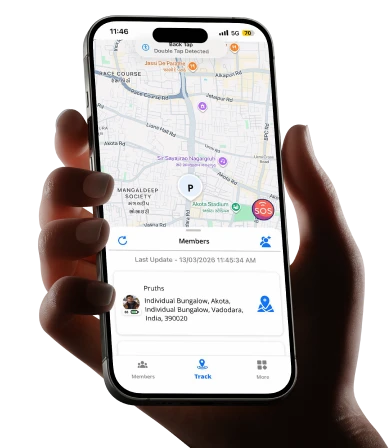
Because knowing where your family is shouldn’t require a phone call, a prayer, and twenty minutes of ceiling-staring at midnight. The Quiet Cost of Not Knowing Here is a situation that requires no imagination for most parents reading this. It is 7:48 PM. Your teenager was supposed to be home at 7:00. You have sent three texts. Two have been read. None have been answered. Your spouse is asking you from the other room whether you’ve heard anything. You say “not yet” in a voice that sounds calmer than you feel, because one of you has to appear composed, and tonight that job has fallen to you. You are not panicking. You are doing something quieter and more exhausting than panic — you are managing uncertainty with no information, no tools, and nothing to do except wait and try to keep your imagination from running the scenarios it wants to run. Now consider a different version of that same evening. Your teenager is out. It’s 7:48 PM. You glance at your phone, see their location dot moving down a familiar street four minutes from home, and go back to whatever you were doing. They walk in at 7:52. Nobody’s stress levels have been elevated. Nobody had to text anyone. Nothing interrupted anyone’s evening. Same teenager. Same situation. Completely different experience — for everyone. That difference is what a well-built family tracker app with real-time location sharing actually provides. Not control. Not surveillance. The specific, targeted replacement of uncertainty with information, in the moments when that information matters most. This guide covers everything a family needs to understand before choosing a location sharing tool in 2025: what these apps actually are, how to use them practically, whether they work across iPhone and Android, whether they cost money, and why Wings Track has earned genuine loyalty from families who’ve tested the alternatives and stopped looking. What Is a Family Life Tracker App — And Why Does It Actually Matter? A family life tracker app is a mobile application that allows members of a defined family group to share their real-time GPS location with each other, receive alerts when members arrive at or depart from specific locations, and maintain continuous awareness of where everyone is without requiring active communication. That definition sounds clinical. The reality is deeply human. Think about the number of times in a typical week that a family exchanges location-related communication: “Did you leave yet?” “Are you almost home?” “Did she get to school okay?” “What time does his practice end?” “Can you check if Dad’s on his way?” These are not meaningful conversations. They are anxiety-management transactions — small, repetitive interruptions to everyone’s day that exist purely because the information isn’t otherwise available. A functioning family location tool eliminates most of these transactions entirely. The information is simply there, ambient and accessible, without anyone having to ask or answer. Parents working in other cities can see their children arrived home from school. Spouses with long commutes don’t have to field “where are you” texts while driving. Families with members spread across multiple countries maintain a thread of daily awareness that no amount of scheduled phone calls fully replicates. The importance of this technology in 2025 goes beyond convenience. Family structures have changed. More parents work remotely in cities far from their families. More children navigate daily life with independence at younger ages. More elderly family members live alone and need occasional welfare checks without the intrusion of constant calling. The family locator app category exists because genuine family life has outgrown the communication tools that used to be sufficient for it. Wings Track was built with this understanding at its foundation. Not as a corporate product retrofitted for family use, but as a tool designed specifically around the emotional and practical reality of families who are spread out, busy, and trying to stay connected without making connectivity itself a burden. GPS Tracker Family Locator App – How to Use It: A Simple Step-by-Step Guide One of the most common reasons families hesitate on location-sharing apps is the assumption that setup will be complicated. It isn’t — at least not with tools built for general family use rather than enterprise applications. Here is the practical setup process for Wings Track, which mirrors the approach of most well-designed family location apps: Download and create your account. Open the app store on your device — App Store for iPhone, Google Play for Android — and search for Wings Track. Download is free. Account creation requires an email address or phone number and takes under two minutes. Create your family circle. Once your account is active, create a new circle and give it a name — typically your family name. This circle is the shared space where all family members’ locations are visible to each other. Invite family members. The app generates an invitation link or code that you send to each family member. They download the app on their own device, enter the code or tap the link, and they’re added to the circle. This works regardless of whether they’re using iPhone or Android. Set up important locations. Add the addresses that generate the most anxiety-related communication in your household: home, school, workplace, after-school activity locations, grandparents’ house. For each location, configure arrival and departure alerts — who receives notifications and under what conditions. Let the app run. This is the step that distinguishes a genuinely well-engineered tool from a poorly built one. Good apps run quietly in the background, update location with meaningful frequency, and surface information through targeted notifications rather than requiring constant active checking. If you’re opening the app more than a few times per day to check locations, the notification system isn’t configured correctly for your family’s needs. Total setup time for a family of four: approximately 20 to 30 minutes. Daily active time investment afterward: close to zero. The information comes to you. Can I Track My Son’s Phone Location? The Honest Answer Yes  and the

Real-time child location tracking app
Child Locator App, Family Tracking App

Best Apps for Real-Time Child Location Sharing and Check-Ins 2025

Quick Summary for Busy Parents: Real-time child location sharing has become one of the most practical safety tools available to modern families. The best apps in 2025 combine live GPS tracking, automatic school departure alerts, cross-platform compatibility, and meaningful check-in features without draining batteries or demanding expensive subscriptions. This guide covers why these tools matter, how they actually work in daily family life, and why Wings Track is becoming the trusted choice for parents who need reliable awareness, not just another app cluttering their phone. A father in Chicago, let’s call him Marcus, had a system with his nine-year-old daughter. She walked two blocks from her elementary school to the after-care program every day at 3:15. It had worked fine for an entire semester. Then one Thursday, the after-care coordinator called him at 3:45. His daughter hadn’t arrived. Marcus was forty minutes away by train. His wife was in a meeting, so she couldn’t immediately leave. The school confirmed his daughter had left at the usual time. Those four minutes between the coordinator’s call and the moment his daughter was found — she had simply taken a wrong turn, gotten confused, and was standing at the wrong corner were, in Marcus’s words, “the four longest minutes of my life.” She was completely fine. He was not, for several days afterward. What Marcus did the following weekend was download a child location sharing app, sit down with his daughter, explain why it mattered, and set up automatic alerts for when she left school and when she arrived at after-care. He’s never had those four minutes again. This story is not dramatic by the standards of what parents quietly fear. Nobody was hurt. The situation was resolved quickly. But the experience of that specific helplessness, loving someone completely and being unable to see where they are in a moment that matters, is something parents across every demographic, every income level, and every family structure understand without needing it explained. The technology that removes that helplessness exists right now, in 2025, and it’s better, more accurate, and more accessible than at any previous point. This guide explains what’s available, how it actually works, and how to choose the right tool for your specific family situation — whether you’re a parent managing school pickups across town, a father working in another country, or a mother whose teenager just got their first taste of real independence. Why Location Apps Are Used for Safety And Why That Framing Matters There’s still a cultural discomfort around the idea of tracking children’s locations. It’s worth addressing directly, because that discomfort when it causes parents to hesitate on a genuinely useful safety tool has real costs. The discomfort usually comes from conflating two very different things: surveillance and safety awareness. Surveillance is about control. It’s about catching someone doing something wrong. It generates secrecy, resentment, and the specific damage that comes from a relationship where one person is always watching and the other always knows it. Safety awareness is different. It’s the digital equivalent of knowing which room your toddler is in. It’s the confirmation that your child arrived at school. It’s the alert that tells you they left an hour ago and should be home soon. It operates in the background of normal life, generating information only when that information is actually needed. The families that use location sharing tools most successfully are those who’ve made this distinction clearly — both to themselves and to their children. The conversation that precedes installation shapes everything about how the tool functions within the family dynamic. When a parent says to their child, “I put this app on your phone so I can spy on you” — even if they’d never phrase it that way — the child experiences it as surveillance. When a parent says, “I put this app on both our phones so we don’t have to text each other constantly and I can know you’re safe without interrupting your day,” — which is actually accurate — the child often accepts it without significant resistance. A well-designed child tracker app is built around the second framing. It generates meaningful, specific safety information without creating the sensation of being constantly watched. The difference is in the notification design, the update frequency of communication, and whether the arrangement is mutual or one-directional. Wings Track is built around mutual family circles where every member has visibility into the arrangement. This design choice isn’t incidental — it reflects a genuine understanding of how safety technology works within real family relationships. How Do You Know When Your Child Has Left School? This is the specific, practical question that sits underneath most parents’ searches for child location tools — and it’s worth answering specifically rather than generally. Automatic departure alerts, sometimes called geofence notifications, are one of the most genuinely useful features in modern location-sharing apps. Here’s how they work: You define a geographic boundary around a location (your child’s school, for example). When your child’s phone crosses that boundary in either direction, you receive a notification. “Jamie has arrived at Riverside Elementary.” “Jamie has left Riverside Elementary.” This sounds simple. The implementation requires getting several things right simultaneously: the geofence boundary needs to be accurately placed, the notification needs to fire reliably when the boundary is crossed rather than several minutes later, and the system needs to handle common edge cases, such as schools with multiple exits, brief departures during lunch, after-school activities that keep children on campus past regular hours. Poorly built apps fire departure alerts late, miss arrivals entirely, or generate false positives that train parents to ignore notifications which defeats the entire purpose. The reliability of geofence alerts is one of the clearest technical differentiators between apps that were engineered carefully and apps that included the feature as a checkbox. When evaluating any app tracking child departure alerts, test it specifically for your child’s school during the first week. Set the geofence, have your child walk the normal departure route,

Best Child Location Tracking App For Parents 2025
Child Locator App, Family Locator App

Best Child Location Tracking Apps 2025

Quick Summary for Busy Parents:  In 2025, child location tracking has matured from a niche parenting tool into a practical necessity for millions of families. The best apps combine real-time GPS accuracy, cross-platform compatibility, and transparent privacy practices. This guide breaks down what works, what doesn’t, and which solutions genuinely fit modern family life including Wings Track, built specifically for families managing distance, busy schedules, and the daily anxiety of not knowing if your child is safe. The Anxiety No Parent Talks About Openly Let me tell you about a Tuesday afternoon that changed how one mother thought about child safety technology forever. Her eleven-year-old son was supposed to walk home from school a route he’d done a dozen times. Twenty minutes passed the usual arrival window. Then thirty. Her texts went unanswered. She called the school. She called his friend’s mother. She was three minutes from calling the police when he walked through the door, earphones in, completely unbothered, having stopped at a corner store without thinking to mention it. She wasn’t angry. She was shaking. That evening, she downloaded a child location tracking app. Not out of distrust. Out of the raw, physical recognition that the gap between “probably fine” and “something is wrong” is invisible until it isn’t and that gap had just swallowed thirty of the most terrifying minutes of her life. This story isn’t unusual. Variations of it happen in millions of households every week, across every kind of familysingle parents managing school pickups alone, fathers working two cities away trying to stay connected, large families with children across multiple schools and activities, and parents of teenagers who are gaining independence faster than anyone is emotionally prepared for. The demand for reliable child location technology in 2025 isn’t driven by paranoia. It’s driven by genuine complexitymore children with smartphones, more families spread across distances, more daily logistics requiring real-time awareness. The apps that exist to meet this demand vary enormously in quality, privacy practices, and honest usefulness. This guide gives you the unfiltered version: what the best options actually do, which platforms they work on, what they cost, and which one belongs on your phone if your family’s safety genuinely matters to you. Apps to Track a Child’s iPhone: What Your Options Actually Look Like iPhone-specific tracking is where many parents start, because Apple’s own ecosystem offers a built-in starting point that costs nothing and requires no third-party download. Apple’s Find My remains the strongest native option for all-Apple households. It’s accurate, battery-efficient, integrated directly into iOS, and free. If your child has an iPhone and you have an iPhone, and everyone in your family shares that same ecosystem, Find My handles basic location sharing well. Arrival and departure alerts work reliably. The interface is familiar. The ceiling hits fast, however. Wings Track has no family circle management beyond basic sharing. It has no check-in features, no alert customization, no location history, and critically zero functionality the moment someone in your household uses an Android device. Which, statistically, most families do. Beyond Apple’s native offering, the third-party landscape for iPhone-compatible tracking includes a mix of genuinely useful tools and an alarming number of apps that exist primarily to collect and monetize your child’s location data while offering just enough functionality to justify the download. The filtering question every parent should ask before installing anything on their child’s iPhone: What does this company do with the location data it collects? Read the privacy policy. Not the marketing summary of the actual policy. If the language around third-party data sharing is vague, non-specific, or buried in a section you have to scroll three pages to find, treat that as the answer. What Is the Best App to Track Your Child’s Location in 2025? Answering this honestly requires separating what the marketing says from what real families experience in daily use. The criteria that actually matter: Real-time accuracy Not “updates every few minutes” accuracy. Actual current location that reflects where your child is right now, not where they were when the app last decided to check in. Cross-platform functionality Works equivalently on both iPhone and Android. Your family shouldn’t have to standardize devices to use a safety tool. Battery impact A tracking app that drains a child’s phone to 20% by 2 PM is a safety liability, not an asset. The phone being dead is worse than no tracking at all. Meaningful notifications Arrival alerts when they reach school. Departure alerts when they leave. Low battery warnings before the phone dies. These specific, actionable signals are what reduce parental anxiety. Constant buzzing about routine movements does the opposite. Privacy you can trust This is non-negotiable in 2025, particularly given the documented history of several major location apps selling anonymized user data to advertising and data broker networks. Your child’s movements are not a product. Any app treating them as one should be eliminated from consideration immediately. Wings Track consistently meets these criteria in a way that most competing apps don’t. It was designed for families with genuine complexity not the idealized nuclear family where everyone lives under one roof and uses the same phone brand. The real families. The ones with long commutes, absent-for-work parents, multiple children in multiple schools, and the kind of daily logistics that require actual real-time awareness rather than a location that updates when the app feels like it. The child tracker app experience within Wings Track is built around the family circle concept everyone in the circle can see everyone else, notifications are customizable and specific, and the interface works equivalently whether you’re on iOS or Android. Parents working in other cities can stay genuinely connected to their children’s daily movements without requiring constant phone calls that interrupt everyone’s day. What App Can I Use to Track My Child? A Practical Breakdown by Family Type Different families have different needs, and the honest answer to “what app should I use” depends on your specific situation. For parents of young children (ages 6–12):The

Child Locator APP for parents
Child Locator App

Child Tracking Apps: Guide Every Parent Needs Before They Download

Because keeping your child safe shouldn’t come at the cost of their trust or your sanity. The Fear That Never Fully Goes Away There’s a particular kind of fear that arrives the moment you become a parent and never completely leaves. It changes shape over the years from SIDS monitors in the new born stage, to watching them cross the street alone for the first time, to the day they walk out the front door with a phone in their pocket and a level of independence that terrifies you even as you know it’s necessary. You want them safe. You also want them to grow. These two things are in constant, exhausting tension. The conversation around tracking apps for kids sits right in the middle of that tension and it’s one of the most searched, most debated, and most misunderstood topics in modern parenting. Some parents install trackers without a second thought. Others feel deeply uncomfortable with the idea and aren’t sure why. Many fall somewhere in the middle: worried enough to want the tool, conflicted enough to hesitate. This guide isn’t going to pretend there’s an easy answer. But it will give you an honest one. We’ll walk through whether parents should track their children’s location, what the research and real family experience actually says, which tools are worth your time, and how to approach this in a way that protects your child without quietly damaging the relationship you’ve spent years building. And if you land on “yes, I want a tool for this” we’ll tell you what to look for and why Wings Track is worth serious consideration for families navigating exactly this situation. Should Parents Track Their Child’s Location? Let’s start with the question everyone is actually asking but few people answer directly. Yes !!! with conditions. The conditions aren’t legal fine print. They’re the human details that determine whether a location-tracking tool becomes a safety net or a source of resentment. Age matters significantly. A seven-year-old walking to school in a neighborhood you don’t fully know yet? Tracking makes complete, defensible sense. A seventeen-year-old heading to a friend’s house three miles away? That conversation needs nuance, not just an app installation. Transparency matters more than technology. The families where location sharing works  where it genuinely reduces anxiety without generating conflict are families where the arrangement is discussed openly, not silently imposed. Children who know they’re being tracked and understand why respond very differently than children who discover it accidentally. Purpose shapes everything. Are you tracking because you’re genuinely concerned about physical safety during a vulnerable developmental period? Or are you tracking because you don’t trust your child’s judgment and want to monitor their decisions? These are different problems requiring different solutions. The first is a parenting tool. The second is a relationship issue that an app won’t fix. The research on this is worth acknowledging honestly. Studies on adolescent development consistently show that young people who feel monitored without trust tend to become better at hiding behavior rather than safer in their choices. The goal of a tracking tool should be to reduce the need for constant verbal check-ins not to replace the ongoing conversation about trust entirely. Should Parents Be Allowed to Track Their Child? This is the philosophical version of the previous question, and it deserves its own space. From a legal standpoint, parents have broad authority to monitor minor children in most countries, including the United States, UK, Canada, and Australia. Installing a child tracking app on a device you own and provide to a minor child is generally within parental rights. But legality and wisdom are different measurements. The parents who ask “should I be allowed to” are often the ones who already sense that the “allowed” question isn’t the right one. They’re intuitively understanding that just because you can track your child doesn’t mean the approach you take doesn’t matter. Here’s what experienced family therapists, school counselors, and parents who’ve navigated this honestly tend to agree on: Younger children roughly under 13-18 benefit from location sharing as a safety measure, and most don’t have strong objections when it’s explained simply: “This helps me know you’re safe so I don’t have to interrupt your day constantly calling you.” That framing lands well. It’s true, and kids at that age understand it. Teenagers have a different conversation. They’re developmentally wired to push for autonomy, and that’s not a bug in their programming it’s exactly how they’re supposed to grow. The families that navigate teen tracking most successfully treat it as a mutual arrangement: “I can see your location, you can see mine, and we’ve agreed this replaces the constant check-in texts.” Reciprocity changes the entire dynamic. The families that struggle most? Those where tracking is installed covertly, discovered later, and experienced as a betrayal. The location data in those cases was never the problem the broken trust was. What Is the Best App for Tracking Family Members? When you move past the philosophy and into the practical, this becomes the central question and the market is crowded enough that the answer requires some filtering. The best app for keeping track of family members does several things well simultaneously: it’s accurate in real time, it works across both Android and iPhone devices, it doesn’t punish your family financially to access basic features, and it respects the privacy of everyone in the circle. Google Maps location sharing is free and widely trusted, but it’s not built for ongoing family use. It lacks notifications, check-in alerts, and the family circle structure that makes daily use manageable. It’s a workaround, not a solution. Apple’s Find My is excellent but only within the Apple ecosystem. The moment one family member has an Android device, which is extremely common in mixed-device households, the system breaks down. Life360 built the category and still has significant market presence. But documented concerns about selling anonymized user location data to third-party brokers, combined with increasingly aggressive feature paywalls, have pushed many families

Scroll to Top