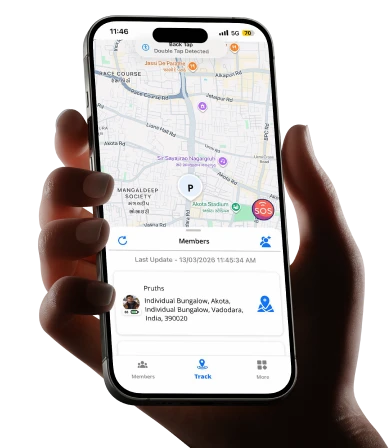
Introduction: The Alert That Changes Everything
A mother in Dallas is in a meeting when her phone vibrates. She doesn’t panic, she doesn’t step out, and she doesn’t send a frantic text. She glances at her screen, reads three words – “Lily has arrived” – and goes back to her meeting without missing a beat. Her nine-year-old daughter just walked home from school alone for the first time. This was the arrangement they’d discussed: Lily walks. Mom gets a notification when she crosses through the front gate. No calls required. No interrupted afternoons. No twenty-minute gap of silent uncertainty.
That notification, silent, automatic, requiring nothing from either the mother or the child, came from a geofence. Most parents have heard the word without knowing what it means. Many have used it without realising what it’s called. Some are still manually texting “Did you get there?” a dozen times a week when a single geofence setup would eliminate the need entirely.
Geofencing is one of the most practically useful features in modern family tracking apps and one of the least understood. Parents who grasp how it actually works tend to set it up immediately and wonder how they managed the daily logistics of family life without it. Those who don’t know what it is keep carrying the weight of constant manual check-ins that exhaust everyone involved.
5 Key Takeaways About Geofencing in Family Locator Apps
Geofencing converts passive location tracking into active, useful alerts.
Without geofencing, a location app shows you a dot on a map, useful but passive. You have to actively check it. With geofencing, the app watches specific boundaries for you and sends a notification the moment someone crosses one. The information comes to you, automatically, exactly when it’s relevant.
It works on both arrivals and departures, and both matter equally for family safety.
An arrival alert confirms your child reached school. A departure alert tells you they’ve left, which starts the clock on when they should be home. Both together give you a complete picture of your child’s movement between locations without requiring any action from either of you during the journey.
The accuracy of the geofence boundary determines the usefulness of the alert.
A boundary set too small, say, fifteen metres around a school gate might fail to trigger if a child enters from a different entrance or if GPS drifts slightly indoors. A boundary set too large sends alerts before someone has genuinely arrived. Most family apps, including Wings Track, allow you to set the radius that matches the physical reality of the location.
Geofencing requires location permissions and data connectivity to function.
The app must have background location access enabled, and the device needs cellular data or Wi-Fi to transmit the geofence event to your phone. Understanding this prevents the confusion of a missed alert, which is almost always a connectivity or permissions issue rather than an app failure.
Battery management in geofencing apps is more sophisticated than most users realise.
Well-built geofencing systems use the device’s motion coprocessor to monitor movement without continuous GPS polling, activating GPS only when motion suggests a boundary might be crossed. This dramatically reduces battery drain compared to apps that run full GPS continuously. Wings Track uses this approach, keeping battery impact manageable across a full day without compromising alert reliability.
How Does Geofencing Work on iPhone?
Geofencing on iPhone draws on three location technologies working together: GPS satellite positioning, cellular network triangulation, and Wi-Fi positioning. The combination is what makes it both accurate and battery-efficient on iOS. Here’s what happens technically when you set up a geofence for your child’s school in Wings Track on an iPhone:
The boundary is defined.
You enter the school’s address and set a radius; typically, 100 to 200 metres works well for most school campuses. The app registers this boundary with iOS’s location monitoring system.
iOS monitors the boundary passively.
Rather than running GPS continuously, iOS uses a low-power region monitoring system that watches for significant location changes. This uses cell towers and Wi-Fi for broad awareness, activating GPS only when the device appears to be near a registered boundary.
The crossing triggers the alert.
When your child’s iPhone enters or exits the defined radius, iOS detects the boundary crossing, the app processes the event, and a push notification appears on your phone: “Lily has arrived at school” or “Lily has left school.”
The entire process is automatic.
No action required from your child. No action required from you beyond the initial setup. The notification arrives whether your phone is locked, in your pocket, or on your desk across the room.
Apple’s native Find My uses a similar system through its Significant Locations feature, but only within the Apple ecosystem. Wings Track extends this iPhone geofencing reliability to families with mixed devices; if your child’s school notification needs to reach an Android parent’s phone, or if your child uses Android and you use iPhone, the system functions identically regardless of which device is on which side of the alert.
What Geofencing Is Used For: Family Applications Beyond the Obvious
The school arrival alert is the most intuitive family use case, but geofencing in a family context covers more ground than most parents initially consider.
School arrival and departure monitoring.
The daily confirmation that your child arrived at school and left at the end of the day without a single text between you. For parents working during school hours, this is the single most practically valuable use of geofencing.
Home arrival alerts for latchkey children.
Children who arrive home to an empty house, parents still at work, and siblings on different schedules create a daily uncertainty that geofencing resolves cleanly. The moment your child crosses the threshold of your property radius, you get the notification. No missed calls. No anxious waiting.
After-school activity monitoring.
A child going from school to football practice to a friend’s house involves three location transitions. Three geofences. Three automatic confirmations that happen invisibly while you’re managing your own day.
Long-distance family awareness.
A parent working in another city can set a geofence around the family home and receive arrivals and departures as the rest of the family moves through their day. The connection is ambient and automatic rather than requiring scheduled calls.
Teenage curfew management.
Rather than the nightly “are you home yet?” text, a geofence around home sends a notification the moment a teenager returns. Both parties benefit: the parent gets the confirmation, and the teenager doesn’t get a text interrupting whatever they’re doing.
Elderly parent welfare checks.
A geofence around an elderly parent’s home, configured to alert adult children if they haven’t arrived home by a certain pattern, serves the welfare check function without the intrusion of daily phone calls.
International travel awareness.
For families with members abroad, geofences around key international locations – a university campus, a workplace, or an accommodation address – provide the ambient connection that replaces time-zone-complicated phone calls.
Which Geofencing App Is Best for Families? An Honest Comparison
| Feature | Wings Track,, | Life360 | Google Family Link | Apple Find My |
| Geofencing alerts (free tier) | ✅Arrival and departure alerts free | ❌ Basic alerts free; detailed on paid | ✅ Included free | ✅ Included free |
| Geofence setup simplicity | ✅Address-based, simple radius | ✅ Address-based, intuitive | ✅ Simple setup | ✅ Simple within Find My |
| Android support for alerts | ✅ Full Android receives and sends | ✅ Full cross-platform | ✅ Android primary | ❌ iOS only |
| iPhone support for alerts | ✅ Full iPhone receives and sends | ✅ Full cross-platform | ⚠️ Parent app only | ✅ Native iOS |
| Number of saved locations (free) | ✅ Multiple | ⚠️ Limited on free | ✅ Unlimited | ✅ Unlimited |
| Alert customization | ✅ Per-location, per-person | ✅ Per-location | ⚠️ Basic | ⚠️ Limited |
| Geofence accuracy on budget devices | ✅ Reliable | ⚠️ Variable | ✅ Good | ✅ Good (iOS hardware) |
| International geofencing | ✅ Full cross-border function | ✅ Full (paid tier optimal) | ✅ Works internationally | ✅ Works internationally |
| Battery impact of geofencing | ✅ Low-motion-based polling | ⚠️ Moderate | ✅ Low | ✅ Very low — OS-level |
| Privacy of geofence data | ✅ Family-first approach | ⚠️ Documented past data issues | ✅ Google standard | ✅ Apple standard |
| Best for | Mixed-device families, cross-platform geofencing | Driving safety plus location | Android children under 13 | All-iPhone families |
The clearest summary: for families whose geofencing app works across both iPhones and Androids which is most families Wings Track delivers the most complete free solution. Apple’s Find My is excellent but iOS-exclusive. Google Family Link covers Android children well but has limited iOS integration. Life360’s geofencing works cross-platform but restricts useful alert features to paid tiers.
Does Geofencing Track Your Location Continuously?
The honest technical answer: geofencing does not require continuous GPS tracking to function, and well-built implementations specifically avoid it. Modern geofencing in quality apps like Wings Track uses a passive boundary monitoring system rather than continuous GPS polling. Here’s the distinction:
Continuous GPS tracking, the approach of lower-quality apps, runs the device’s GPS chip at full power regardless of whether the device is moving toward a boundary or sitting stationary on a desk. This drains battery significantly and provides no additional safety value for a device that isn’t moving.
Passive boundary monitoring, the approach of well-built apps, uses the device’s motion coprocessor to detect when the device starts moving, then uses low-power cell and Wi-Fi positioning to determine if it’s approaching a registered boundary and activates full GPS only when a boundary crossing appears imminent. This achieves the same alert reliability with a fraction of the battery impact.
For parents concerned about privacy specifically, the location and geofence data in Wings Track are shared within your family circle and is not sold to third parties or advertising networks. This is the fundamental privacy distinction between family safety apps and apps that monetise location data commercially.
How Do I Geofence My Phone? A Step-by-Step Setup Guide
Setting up geofencing in Wings Track takes under ten minutes once the app is installed on both your phone and your family member’s device.
Download and set up Wings Track.
Install the app on your device and create a family circle. Send invitations to each family member whose location you want to monitor. Each invitation is accepted individually on the recipient’s device; this consent-based enrolment is how the mutual awareness arrangement should work.
Navigate to the Places or Locations section.
Within Wings Track, find the saved locations feature typically labelled ‘Places’, ‘Locations’, or similar. This is where you define the boundaries that trigger alerts.
Add your first location.
Enter your child’s school address. The app will identify the location on a map. Setting the radius to 100 to 150 metres typically works well for school campuses, capturing all entry points without being so large that alerts fire from across the street.
Configure alert preferences.
Choose whether you want arrival alerts, departure alerts, or both. Specify which family members’ arrivals and departures trigger notifications to your device. You can typically set different alert configurations for different family members at the same location.
Test before relying on it.
On the first day of use, confirm the arrival alert fires when your child reaches school and the departure alert fires when they leave. If an alert doesn’t fire, check location permissions on your child’s device (Settings → Apps → Wings Track → Location → Allow All the Time) and confirm their device has active data or Wi-Fi connectivity.
Repeat for other important locations.
Home, after-school activities, a grandparent’s house, a regular sports venue. Each saved location with a configured alert extends your awareness without requiring any additional daily action from you or your child.
Conclusion: Geofencing Is the Feature That Makes Location Tracking Actually Useful
That’s what geofencing does at its best. Not surveillance. Not constant monitoring. Targeted, automatic awareness of the specific moments of arrivals and departures from the places that matter that parents actually need to know about. Wings Track delivers geofencing that works across iPhone and Android equally, covers multiple family members simultaneously, fires alerts reliably without destroying battery life, and is available as part of a genuinely free core offering rather than a premium tier payable monthly before the basic function works.
Download family tracking app access through Wings Track today. Set up your family circle, add your first geofence around your child’s school, and let the geo-fencing app for mobile handle the daily check-ins that currently require texts, calls, and the specific low-grade anxiety of not knowing. The notification that says “she’s home” the one that arrives while you’re in a meeting, cooking dinner, or already halfway through your evening, is ten minutes of setup away
Wings Track: The alert that arrives before the worry does